Choosing the Best Laptop

We are frequently asked which laptop we recommend and what our opinion is on the best laptop. Since all laptops use similar components, the real difference in laptops is how the manufacturer handles warranty replacement of parts.

When purchasing a laptop, we recommend buying the extended warranty but only when it is directly from the manufacturer and not from the retail store. Buying an HP or Dell computer directly from their web-site offers the advantage of selecting the longer manufacturer warranty, although the web-sites offer a bewildering array of options and upgrades.

Many retail stores will sell new laptops with only a 90-day warranty so that the store can sell the extended warranty. These after-market retail warranties have consistently proven problematic, where the store will be unable to service the laptop or get replacement parts.

With laptops, only the LCD panel, hard drive and memory are standard and interchangeable; every other part is customized and specific to the laptop model. None of the laptop manufacturers provide replacement parts for sale, so some parts can be impossible to replace.

Another issue when purchasing laptops is selecting the operating system version. Microsoft sells Windows in Home and Professional versions. The Professional versions include support for Windows office network servers that require domain login. Most retail laptops are sold with the Home version of Windows. Ordering online offers the option of selecting the Pro version of Windows for network server compatibility. While laptops with the Home version of Windows can be upgraded to Pro, it incurs an additional expense.

When choosing a new laptop, avoid anything with a Celeron label on it. This is the entry level processor from Intel and it rarely provides adequate performance. Look for laptops with an LED LCD, which is thinner, lighter, brighter and uses less battery power than a traditional CCFL LCD. When choosing a laptop size, think twice before buying a laptop with a 16″ or 17″ wide screen LCD. We frequently get complaints from users that have these and consider them too big and too heavy to carry.

Dell is always our first choice and best recommendation. Dell laptops are easiest to diagnose and repair; they are designed to be field serviceable with only a screwdriver. Dell parts are widely available and easiest to order. Dell offers the option of purchasing an extended warranty up to 4 years. We highly recommend buying the 3 or 4 year warranty on a Dell laptop.

For warranty repairs, Dell will directly ship replacement parts overnight, and they rarely require returning the laptop for service. New Dell laptops are available both on-line at the Dell web-site and in retail stores, including Wal-Mart.

Our second choice after Dell is HP/Hewlett-Packard. HP computers are also easy to service and repair like Dell, and spare parts are available. HP sells both directly from their web-site and in retail stores. Avoid buying the extended warranty from the retail store for the reasons described above.

Fujitsu, Toshiba, Sony and IBM are also available both direct and in retail stores. We do not recommend buying these brands. These brands are not designed to be field serviceable, so they require more time and are more difficult to repair. Toshiba does not send out any replacement parts. Instead, they require returning any laptop to them for repair, which can take weeks.

Apple laptops are the most difficult to service. Replacing the hard drive on most Apple laptops requires removing 20 or more screws and completely disassembling the laptop; on a Dell or HP, the hard drive is readily accessible with only 2 screws. Apple laptops do use standard LCD panels, RAM and hard drives, but other replacement parts are nearly impossible to buy or are priced exorbitantly. We highly recommend buying the longest available warranty directly from Apple when purchasing an Apple laptop.

Posted in Computers, FAQ, Hardware | Tagged , , , , , , , | Leave a comment

How to Properly Secure Old Hard Drives

Throughout the useful life of a computer, securing and protecting the data on the hard drive is a necessary concern. But when computers are discarded, the data has to be removed effectively to ensure no one else can read the hard drive. There are recurring news stories about people that discard computers without erasing them, only to discover that their files and information remain accessible.

Simply deleting files from a hard drive does not remove the information. Deleted files can be restored and viewed, because deleting only removes the name of the file and not the contents.

Formatting a hard drive using a DOS or Windows format program does not erase a hard drive. Instead, the format utility simply reads the entire hard drive and then erases the entire list of files. The result is that the hard drive may appear empty but will be recoverable, and the original files will remain viewable.

The best practice for erasing a hard drive requires using a software utility that erases the drive by writing zeroes over every character (byte) on the drive. When this method is used, there remains no possible method of recovery, and any examination of the hard drive will display empty or zero data.

We do not recommend trying to break or crush a hard drive. The hard aluminum case on the hard drive will protect the discs inside, and no matter how much damage is done the data still remains on the discs.

A hard drive that is properly erased and completely overwritten using zeroes can safely be re-used or returned for recycling without any risk of anyone ever viewing or recovering any data.

Posted in Computers | Tagged , , , , | Leave a comment

How Long Does a Computer Last?

A previous post described how to determine the real age of a computer by looking at the power-on time instead of the date of manufacture. A related question that is frequently asked is how long will a computer last? Based on our experience and research, we have itemized the lifespan and failure modes of each individual component in a computer that can be replaced.Well if you have used completely then you can contact some computer recycling service as well.

While the lifespan of a computer could be decided by the first component to fail, this is the most expensive and conservative approach to determine lifespan. Desktop computers have at least five different components, and the components each have their own lifespan that ranges from 10,000 to 50,000 hours or more.

We consider 50,000 hours to be the end-of-life range for most computers, since it represents almost 6 years of continuous operation. Given the pace of innovation, with storage and speed doubling every 18 months (based on Moore’s Law) any computer is worth replacing after 50,000 hours of usage.

We analyzed the return rate of failed components, comparing our return rate with the overall return rate of 20 other computer resellers from the same supplier. We found that our lifetime return rate for components was 5%, compared to 2.5% for everyone else. We believe our higher return rate is due to the 100% testing we perform on all RAM and other components. This also could mean that while 2.5% of all components fail and require replacement, another 2.5% of components that are failing remain undiagnosed and require testing.

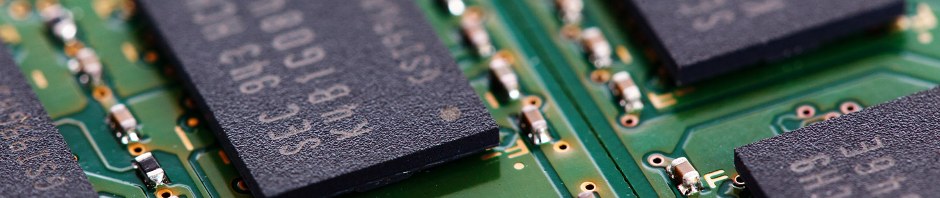
RAM memory is very reliable with no moving parts, and easily tested with pass/fail diagnostics. Lifespans are considered unlimited, surpassing 50,000 power-on hours.

Processors are more reliable than RAM because they include a heat-sink and fan to promote cooling, and are the least likely component to fail in a computer. Lifespans are considered unlimited, surpassing 50,000 power-on hours. Most processors include an internal temperature sensor, so that they will shutdown or restart the computer if they overheat due to fan failure.

CPU heat-sink fans are a significant problem in many systems. While the fans that are included with Intel processors are extremely reliable, many computers use third party fans that are noisy or less reliable. Genuine Intel fans with ball bearings will run reliably past 50,000 hours, while third-party sleeve bearing fans will begin to fail after 10,000 power-on hours. CPU fans should be checked and cleaned with compressed air annually to eliminate the accumulated dust that leads to overheating.

Desktop and Server Motherboards most frequently fail due to bad electrolytic capacitors, so they need to be checked visually once a year for the early signs of electrolytic capacitor failure (cracking, bulging, leaking.)

Some models of motherboards have shown capacitor failure after only 2 years, while others show failure after 3-5 years. We have also seen motherboards that are more than 10 years old with perfect capacitors. All motherboards rely on capacitors, and they can have from ten to fifty capacitors.

Laptop Motherboards most frequently fail due to bad video chips. Both Dell and HP have had serious problems with laptops failing due to bad nVidia video chips. While laptop motherboards also have many capacitors, due to the miniature size and low voltage, they almost never include the failure prone electrolytic capacitors that are seen on desktop motherboards. Instead, laptop motherboards use miniature solid state metal capacitors that are extremely reliable.

Power supplies have spinning fans and many electrolytic capacitors. Lower quality sleeve bearing fans will become noisy after 10,000 power-on hours, while better quality ball bearing fans will last up to 50,000 hours. Larger 120mm fans run at a lower RPM than smaller 80mm fans, and the lower RPM increases reliability.

Failing fans inside power supplies are rarely replaced; instead, the entire power supply is replaced when the fan becomes noisy or fails to spin fast enough to cool the power supply.

Diagnosing capacitor failure in power supplies is practically impossible, since power supplies are completely shielded inside a metal box. This makes visual inspection of failed capacitors impractical. Typically, capacitor failure inside power supplies leads to power-on failure for the entire computer.

Since power supplies are a low cost item that requires no software configuration, they are fast and simple to replace. Not all computer manufacturers use standard power supplies, so when a computer with a non-standard size power supply fails it may require replacing the entire computer. Non-standard power supplies are typically seen in slim or mini size computers, while mid-tower computers usually have replaceable standard size power supplies.

Since 2009, all of the computers we assemble utilize ATX 2.2 power supplies with 120-mm ball bearing internal fans. These are the quietest and most reliable power supplies available. We use the same top quality power supplies when replacing failed power supplies in other manufacturers machines.

The lifespan of power supplies can be extended by cleaning them annually with compressed air. This removes the dust that accumulates inside the power supply, which reduces the cooling effectiveness of the fans.

Hard drives are the most complex component in a computer. The common hard drive has a circuit board that can overheat and burnout, magnetic discs that can fail to read or write, and a high speed drive motor that can wear out and fail.

Most hard drive failures occur due to problems with reliably reading or writing to the discs. Since hard drives include incredibly sophisticated error correction capabilities, most errors are managed by the drive to prevent failure. These errors can be detected and monitored using diagnostic software that retrieves the stored error history of the drive.

For hard drives below 80gb in size, they typically have ball-bearing motors that are limited to 5400-rpm and will wear out and increasingly fail after 20,000 power-on hours. Almost all hard drives above 80gb use silent fluid dynamic bearings that are more reliable and will last beyond 50,000 hours.

The manufacturer guidelines for hard drives generally predict a power-on lifespan of 20,000 hours for 2.5″ laptop drives and up to 50,000 power-on hours for 3.5″ desktop drives. We generally recommend replacing any hard drive that has more than 40,000 power-on hours.

SSD storage drives are new in 2011. SSD’s are inherently more reliable since they have no moving parts to wear out. However, the NAND flash memory inside the SSD has a limited write repeatability. Typically, each 512-byte data block is limited to an estimated 10,000 writes before it may begin to fail or stop saving new data.

For example, a 120gb SSD may be rated by the manufacturer for 64TB (terabytes) of lifetime data writes, which could be the equivalent of 5 to 50 years of daily usage. SSD’s do not have a read limit and have excellent long term retention, rated at up to 100 years.

CD and DVD drives are another motor driven mechnical component with a limited lifespan. Even though a CD drive may be used infrequently, they frequently develop tray problems that prevent the tray from ejecting. As a low-cost component, they are easily replaced.

CRT monitors rely on phosphor coated glass, so they become gradually dimmer with age. Most CRT monitors reduce to 50% brightness after 5-7 years of daily usage, equivalent to 10,000 or more hours.

LCD monitors with CCFL backlights tend to fail after 5 years or 10,000 hours, with the power inverter the most likely component to fail. The CCFL (fluorescent) backlight bulb in an LCD monitor will also become pink and dim as it ages; there is no repair or replacement method for bulbs. For laptops, LCD panels and inverters are easily replaced and readily available. However, for desktop LCD’s, there are no repair parts available.

LCD monitors with LED backlights are the newest technology and represent the highest quality and reliability. Since the LED backlight doesn’t need a high voltage inverter, this eliminates the most frequently failed component. LED bulbs are also very reliable, lasting beyond 50,000 hours. For monitors that are used 8 hours a day, an LED backlit LCD panel can last up to 25 years.

Laptop batteries have the shortest working lifespan of any computer component. A typical laptop battery will provide 1-2 hours of run-time, and requires 2-4 hours for a full charge cycle. Typical Lithium-Ion laptop batteries are limited to 300-500 charge cycles, resulting in a lifetime run-time limit of 500-1000 hours. Given that a laptop can be used up to 2000 hours per year or more, laptop batteries can require annual replacement. To accurately determine the number of charge cycles, battery diagnostic software must be installed to report on the actual battery operation.

Lithium coin batteries: Most motherboards have a socketed 3-volt Lithium coin battery that provides power to the BIOS (Basic Input Output System) CMOS (complimentary metal-oxide semi-conductor) chip. The CMOS chip stores BIOS configuration settings for the hardware. These batteries are rated for up to 10 years or 100,000 hours of continuous operation. They are inexpensive and easily replaced. Most computers will display a “CMOS error, battery power lost” on startup when the Lithium coin battery can no longer provide enough power for the CMOS chip to save the settings. The most common replacement battery is the CR-2023, widely available in stores for less than five dollars. We stock new replacement batteries for $2.

Posted in Computers, Hardware | Tagged , , , , , , , , , , , , , | 4 Comments

Ten different causes for lock-ups

When a computer encounters a hardware problem, it will try to display an error and warn the user that a component has failed. This response works well with peripherals and minor components like a keyboard, mouse or printer.

For more severe hardware problems, Windows will try to display an error and stop the computer to prevent new information from being lost. This results in a blue screen with a technical message in bright white letters being displayed. The top part of the error message with begin with Windows STOP error and an 8-digit code that begins with 0x. Once a blue screen stop error has been displayed, the computer must be restarted using the power switch. Any unsaved data on the screen at the time the stop error occured will be lost.

When a core component necessary to keep the computer running malfunctions, Windows may not be able to display a message to warn that a component has failed. Instead, Windows may lockup, freeze, pause, restart, run slowly or stop responding. When the mouse and keyboard fail to respond, then these symptoms indicate a hardware failure.

After 25 years of testing and diagnosing thousands of computers, we have found ten different reasons that a computer will lockup. Diagnosing lockups properly means having a skilled and experienced technician check for all ten of these causes.

1. CPU overheating due to failed CPU fan.
2. CPU overheating due to accumulated dust blocking CPU fan.
3. System overheating due to failed case or power supply fan.
4. Bad RAM.
5. Bad blocks while reading from or writing to the hard drive.
6. Bad peripheral component; network card, video card or modem.
7. Failing capacitor on the motherboard.
8. Root-kit virus that has modified system drivers.
9. Insulating washers improperly installed on motherboard grounding screws.
10. Failing power supply with bad capacitors.

While it is tempting to diagnose the cause of a lockup by the symptom, it is necessary to rely on component testing and diagnostics to properly identify the failing component.

If your computer is locking up or re-booting, contact us to have it properly diagnosed and repaired.

Posted in Computers, Hardware | Tagged , , , , , , , | Leave a comment

How Old is Your Computer?

We frequently hear people say “my computer is old” and then they try to remember when they bought the computer to determine its age. Describing a computer by its age is only part of the story, and it can lead to a misleading evaluation.

While cars are judged by model year and mileage, computers need to be judged by model year (“age”) and power-on time. The hard drive inside every computer tracks the power-on time, so checking the hard drive will reveal how many hours the computer has been in use. Evaluating machines by their running time is a widely used practice in many industries and is typically tracked using a Hobbs meter.

Consider this scenario: two identical cars, both made in the same year but one has 10,000 miles and the other has 100,000 miles. While the model year of the car can be useful to determine features, without the mileage it wouldn’t tell a complete story. The car with 10,000 miles will be consider to have plenty of life left, while the car with 100,000 miles on it is going to need repairs soon.

At an average of 50mph, 10,000 miles is equivalent to 200 hours of operation, while every 100,000 miles is equivalent to 2000 hours of operation. Using a lower average speed of 25mph doubles the hours to 400 and 4000 hours.

For a computer, we need to check the power-on time to accurately asses the usage of the computer. Since there are 8760 hours in a full year or 2000 hours in a year of 9-5 workdays, there can be a big difference in power on time for any computer.

Server computers that run continuously will accumulate the most power-on time, while office computers will accumulate much less time if used 9-5pm and then turned off at night. Home computers that are only used a few hours a day accumulate the least amount of power-on time.

  • Network server and equipment, running continuously for five years: 43,800 power-on hours.
  • Office computers used 9am to 5pm weekdays for five years: 10,000 power-on hours.
  • Home computers used 3 hours a day for five years: 5475 power-on hours.
  • Once the power-on hours are known, more specific decisions can be made about the parts inside a computer. Most desktop hard drives that are 80gb or larger are rated at 50,000 hours for their lifetime usage, while laptop hard drives are rated lower at 20,000 hours. Hard drives that are smaller than 40gb typically use metal ball bearings that get noisy and overheat after 20,000 hours, while 80gb and larger hard drives use silent fluid dynamic bearings that rarely fail and run silently. As a hard drive approaches its cumulative lifetime limit, the possibility of total drive failure (burnout) increases.

    Fans are another component that have a low lifetime limit. Sleeve bearing CPU and case fans will get noisy and wear out after 10,000 hours. Better quality fans with ball bearings will last up to 20,000 hours. Genuine Intel CPU fans use the best quality bearings and will frequently last up to 50,000 hours or more.

    The biggest variable in component life are capacitors, since a single failing capacitor will cause the entire computer system to fail. Since motherboards have up to 100 capacitors in up to ten different sizes and shapes, it is very hard to predict capacitor failure. Instead, computers need to be visually inspected annually for the early signs of capacitor failure, such as lifting, bulging, cracking and leaking.

    Posted in Computers, Hardware | Tagged , , , , | Leave a comment

    Living with Outlook’s limits

    Microsoft Outlook is a widely used e-mail program, but it should come with a book listing all of the limitations. Most of these limitations are related to the design of Outlook, because Outlook stores all messages in a single database file that has a size limit, in which you can even download them as pdf with merge pdf.

    There are two variations of Outlook: Outlook Express is free and included with Microsoft Windows XP. Outlook Express does not include a calendar. The complete version of Outlook is sold alone or with Microsoft Office and includes a calendar.

    Outlook 97 through 2002 have a 2gb file size limit. Starting with Outlook 2003, the message database file size limit can be increased to 20gb. When Outlook is integrated with an Exchange server, the Exchange server will allow a maximum file size of 75gb per user.

    When Outlook was first released by Microsoft in the 1990’s, all e-mail was in the form of text messages with an average size of 2kb. Since messages didn’t include graphics, web pages, attachments or other large content, a 2gb limit for the Outlook database seemed gigantic. Using an estimate of 100 saved messages per day, a 2gb Outlook.PST file would hold 27 years of mail.

    However, as e-mail switched from plain text to HTML graphics, messages grew in size so that the 2gb data database file has become a problem for many users.

    At the time that Outlook was first designed, storing messages in a single database file was faster and more secure than storing each message as an individual file. Outlook was designed at a time when Windows used the FAT32 file system. The FAT32 file system lacked security features and slowed down significantly if a folder contained more than 1000 files. This led to the decision to store all messages in a single database file.

    Once Outlook reaches the 2gb limit, it stops receiving and saving new messages. Although it may allow new messages to be sent, it will fail to save sent messages in the sent message folder due to lack of space. Deleting messages may increase available space, but Outlook may not recognize the free space until the database is compacted.

    Using the Auto Archive feature will move older messages into a separate file, reducing the size of the Outlook database file. Auto archive can be configured to run automatically.

    Another design limitation of Outlook is that it cannot share contacts, e-mail or calendars unless it is integrated with an Exchange server. One simple method of sharing e-mails in Outlook is to use the often overlooked IMAP feature. Configuring Outlook in IMAP mode will leave all messages on the mail server, making it easy to switch between computers to see the same messages.

    Using Outlook in IMAP mode is also a useful method for avoiding the Outlook PST file size limit. Since IMAP mode leaves all messages on the mail server, the mail server size limit will determine the maximum size limit instead of using Outlooks PST limit. However, some mail servers may have e-mail account limits that are less than 2gb, so it is important to determine the mail server account size limit.

    An excellent alternative to Microsoft Exchange or hosted mail service is the Interchange mail server software from Lan-Aces.com. This mail server software runs on any Windows version and supports IMAP mode. Since Interchange stores e-mail messages as individual files, there is no limit to the mailbox size for users.

    Posted in Computers, Software | Tagged , , , | 1 Comment

    Are you still defragmenting?

    Microsoft Windows has always included a feature to defragment hard drives, and defragmenting is widely recommended as a necessary maintenance activity. But does it make a difference?

    When DOS and early versions of Windows 95/98/ME were released, they used a simple file allocation table system (“FAT”) to store files on hard drives. The file allocation system was designed to use hard drive storage efficiently, allowing a large file to be broken into pieces that could be stored out of order on the drive. This approach was intended to make efficient use of the space on small hard drives with frequently deleted files.

    When the parts of a file were stored in many locations on a hard drive, DOS and Windows 95/98/ME would force the hard drive to thrash about collecting the pieces of the file. Both DOS and Windows 95/98/ME could only do one task at a time, so they could not perform any additional tasks to optimize the process of storing and retrieving files.

    For example, imagine a 100 page document, with each page stored in a different place on the hard drive. Under DOS and Windows 95/98/ME, the operating system would force the hard drive to collect the pages of the document in order, making the hard drive go back and forth multiple times, reducing performance. Defragmenting the hard drive would combine the pieces of a file to allow the hard drive to read back files in a smooth continuous pattern.

    All of this changed with the introduction of NTFS (“new technology file system”) in Windows NT/2000/XP and all subsequent versions of Windows. While files could still be stored in many locations on a hard drive, Windows with NTFS would read back the files from the hard drive out of order, allowing the hard drive to move in a continuous fashion while Windows would re-assemble the files in correct order in memory. This method is known as “elevator seeking” since it follows the way an elevator in a building works, picking up all passengers as the elevator goes up, rather than responding to the order the buttons are pushed.

    Since elevator seeking ignores the location of files, it also means that defragmenting has little or no effect on performance. Instead, we recommend decompressing all files on a hard drive to improve performance, since the Windows cleanup wizard will compress files.

    With the introduction of SSD (solid state drives) in 2011, defragmenting is not recommended. SSD drives have an unlimited lifetime read capability but a limited write capability, so the additional writing creating by relocating files during a defragmentation reduces the longevity of an SSD drive.

    For SSD drives, instead of defragmenting, they need to have partially filled blocks of data re-written to optimize write performance. In Windows 7, this maintenance is done automatically by the operating system. For Windows XP and Vista computers using an SSD drive, software that supports the SSD TRIM command should be run monthly to maintain performance.

    Posted in Computers, Hardware, Services, Software | Tagged , , , | Leave a comment

    Understanding laptop batteries

    Laptop batteries display a puzzling behavior: when they are new, a laptop may run for hours on a full charge, but as time passes, the battery doesn’t last as long. Checking the battery charge in Windows may show 100% charged but the laptop only runs for minutes.

    Solving this puzzle requires understanding how batteries change as they age. Batteries are like a gas tank that shrinks a little each time its used. Imagine a new car with an 18 gallon gas tank; when filled, it holds 18 gallons and the gauge shows full. If the tank shrank a little each time it was used, the same way a laptop battery does, it would eventually hold only 9 gallons but the gauge would still show full after it was filled.

    The best way to evaluate a laptop battery is to use a software diagnostic program designed to check the battery. All laptop batteries include built-in charging circuits that store a history and status for the battery. Hewlett-Packard provides an excellent battery diagnostic program that displays the original and current capacity of a battery, along with the age and number of charge cycles.

    Most Lithium Ion batteries begin to lose capacity significantly after 200-300 charge cycles and require replacement when they fail to charge.

    Posted in Computers, Hardware | Tagged , , , | Leave a comment

    Determining the right RAM size

    Computers rely on RAM memory to run programs, and RAM memory has a significant effect on performance. Determining the correct amount of RAM for a computer does not need to be guesswork; it can be accurately checked using a simple procedure.

    When a computer has sufficient RAM memory, all of the programs that are running will fit in RAM memory, allowing the processor to operate these programs quickly.

    Since Windows 2000/XP/Vista/7 are all virtual memory systems, they are not limited to the installed RAM memory in a computer. On a computer with too little RAM, Windows will swap out programs that don’t fit into memory and store them in a swap file on the hard drive. Since hard drives are more than a thousand times slower than RAM memory, the performance drops off dramatically as soon as Windows uses all available RAM.

    The correct method for determining if a computer has enough RAM is to check the commit charge after the typically used programs have been opened.

    Steps:
    1. Press Control-Alt-Delete on the keyboard to display the Windows Security menu.
    2. Select the Task Manager button.
    3. Select the Performance tab.

    Commit charge, total: amount of RAM presently in use by the running programs.
    Commit charge, peak: most amount of RAM used since the system was last started.
    Physical memory, total: actual amount of RAM memory available.

    The commit charge total should be below the physical memory total. Any time the commit charge total or the commit charge peak exceeds the physical memory total, the computer will become significantly slower. At a minimum, enough RAM should be added so that the commit charge total is less than the physical memory total. Ideally, there should be enough memory installed to exceed the commit charge peak.

    Posted in Computers, Hardware | Tagged , , | Leave a comment

    Making better domain names

    Since the Internet was made available to the public around 1995, millions of domain names have been registered. Here are few thoughts on how domain names can be improved:

    Why does everyone insist on writing domain names all in the same case? This only makes them harder to read. Domain names aren’t case sensitive; both google.com and GOOGLE.com will get you to the same place. Much like the German language that concatenates (combines) individual words into single words, the Internet requires domain names have only letters and numbers, no spaces or punctuation. Even with this limitation, simply adding proper case inside a domain name makes it much easier to read.

    Compare the following example; which form is easier to read?
    jonrosensystems.com
    JonRosenSystems.com

    There is actually a precedent for writing domain names in the style of mixed case (upper/lower case) and its called “EBNF” or Extended Backus-Naur Form. This style was proposed by Swedish programmer and Pascal language inventor Niklaus Wirth.

    Another idea that is frequently overlooked is the use of hyphens/dashes in domain names. While many popular domain names are already registered, the same domain name with hyphens can be readily available. Here’s an example of how dashes can produce a new domain name:

    JonRosenSystems.com
    Jon-Rosen-Systems.com

    In addition to descriptive names, we recommend registering the business phone number as a domain name. For example, we have registered the following domain name:

    7168399714.com

    In a world where anyone can buy a domain name, its likely that a large phone company will eventually register all phone numbers as domain names. As of 2011, there are 76 million domain names registered in the USA, with another 25 million names registered outside the US. If all US phone numbers were registered, it would add another 762 million domain names to the Internet.

    Another useless tradition that should be retired is the use of saying or writing “WWW” in front of a domain name. While there was a time when most web servers would only recognize a web-site with the triple-W pre-pended to the domain name, web servers now widely recognize domain names without the triple W prefix.

    Also, saying triple W in front of a name that ends with a top level domain suffix (.COM, .ORG, etc.) is duplicitous. Since everyone understands that google.com is a domain because it includes the .COM ending, its really not necessary to say: www.google.com. Let’s all agree to retire the WWW from print and speech and just say the domain name and suffix.

    Posted in Internet | Tagged | 1 Comment