Removing fake System Fix and Win 7 anti-virus

The System Fix fake anti-virus is a Windows program that hides all files and displays multiple fake warning messages. This fake anti-virus changes names every few weeks, using names like System Fix, Win 7, etc.

This fake program is installed after visiting a web-site that has been hacked and modified to run the fake program. It may also appear as part of the advertising on a legitimate web-site, warning that your system is infected and requires a scan. This fake warning is used to trick and lure users into installing the fake anti-virus software.

This procedure can be used to remove System Fix fake anti-virus and other similar variations:

1. Enter the following activation code to stop the fake error messages:
1203978628012489708290478989147

2. Use Control-R to run iexplore.exe

3. Download unhide.exe to reveal all files that have been concealed.

4. Download and run ComboFix.exe from Bleeping Computer to repair all Windows settings.

5. Download and run Kaspersky TDSSkiller.exe to remove the rootkit boot.sst.b file and restart.

6. Rename and deleted numbered fake anti-virus program files in c:\documents and settings\all users\application data.

7. Run MSconfig and select safe mode with networking. Disable numbered programs in the Windows startup.

8. After restarting Windows, download and run Malwarebytes to remove the remaining files.

9. Install cCleaner to remove all files from the temporary folders and unused registry entries. Review the Windows startup list and delete numbered startup programs.

Our technicians specialize in identifying and removing fake anti-virus software. If you find your computer has been hijacked by a fake anti-virus, bring it to our office for repair.

Posted in Computers, fake anti-virus, Internet | Tagged , , , , , | Leave a comment

Interpreting S.M.A.R.T. data from hard disc drives

Introduced in 1995 on all IDE, SATA, SSD and SCSI hard drives is a feature described as S.M.A.R.T., an acronym for self monitoring and analysis technology. This is a set of data that is accumulated and stored inside a hard drive to evaluate the performance and history of the drive. As problems or events occur inside the disk drive, they are recorded as SMART data in a reserved area on the hard drive.

SMART data can be displayed using many different free software utilities. There are no built-in utilities included in any version of Windows to display SMART data. Recommended free utilities that can readily be found using Google.com include Speccy, SpeedFan and HDtune.

Most utilities will offer a choice of raw data, typically in hexadecimal (base 16) format and regular decimal (base 10) format. Raw hex is useful for determining when a single 8-digit SMART field is being used for split high/low counters, where the first four digits represent one attribute and the last 4 represent either a separate attribute or a low threshold. This can help properly interpret decimal numbers that are unusually high.

For example, some drives report temperature as a range rather than a current value, but when the double-word hex is converted to decimal, it becomes a single large number that is meaningless.

Every drive manufacturer uses a slightly different set of SMART data and descriptions. These variations create a challenge when interpreting SMART data. For example, most hard drives report power-on time in hours, but some drives report it in minutes and a few use seconds.

Many computers will perform a startup check of the SMART history on a hard drive, comparing the current SMART data against a set of pre-defined thresholds. If any attribute exceeds a defined threshold, a warning is displayed.

For example, on a Seagate 40gb IDE hard drive, the relocated sector threshold is 50, so when there are more than 50 relocated sectors, the computer will display a SMART warning on startup. While the drive will continue to operate, the user should arrange to copy all files and replace the failing hard drive.

Power-on time is the most accurate method of defining the age of a hard disk drive, and can be useful for determining when a drive should be replaced. Most hard drives are considered to be at a higher risk of complete failure as they approach 50,000 power-on hours. This is equivalent to 25 years of 9-5pm weekday usage, or over 5 years of continuous 24×7 operation.

The next most useful data attribute is relocated sectors. This counter indicates how many sectors were unusable and relocated. Every hard drive has a fixed number of spare sectors, typically between 50-100 spare. This allows the drive to tolerate a small number of bad sectors without reducing the total capacity.

Once the number of spare sectors has been used, the drive will allocate more sectors to replace bad sectors, but the total capacity of the drive will be reduced.

The re-allocation process occurs when the drive is unable to save data successfully into a sector. When a bad sector is discovered during a write, it is marked unusable and the data is saved into a spare sector.

Whenever bad sectors are present on a hard drive, the best practice is to perform a full read-write test across the entire hard drive to discover any new bad sectors. Hard drives with bad sectors should always be tested twice and checked to see if the bad sector count increases. If the count increases after the second complete test, the drive is unreliable and failing and should be replaced.

Occasionally on Western Digital drives with relocated sectors, we see these numbers return to zero after performing a full read-write test of the entire hard drive. This occurs when a previously relocated sector is re-tested after re-writing the entire 512-byte sector with a data pattern. The pattern may force the drive to re-establish the data on the drive correctly, and if it succeeds in writing and reading the sector, it will be returned to use as a good sector.

Seek and ECC errors are a less useful SMART statistic because of the differences between manufacturers. For example, every Seagate hard drive will display unusually high seek and ECC errors, typically 100 million or more.

In fact, after testing over 1,000 different Seagate hard drives of all sizes, we have never found a Seagate hard drive that did not have very high seek and ECC errors. While Seagate Technology does not offer an explanation for their high seek and ECC errors, its likely that they are transparently reporting the results of data being read before PRML (partial result maximum likelyhood) is applied.

PRML is Seagate’s proprietary method for statistical analysis of the data signal returned by the drive as it is converted back into the binary data stream. If true, then their ECC and seek numbers would lower and more meaningful if they would report them after PRML is applied.

However, Western Digital hard drives rarely ever report non-zero seek and ECC errors, and when they do show seek or ECC errors, the drive is already failing and reporting other errors.

Hard drive temperature is another value reported by SMART on every drive. Typically, we consider 50 deg. Celsius to be the upper limit for operating temperature. It is unusual and problematic if a drive is reporting its temperature over 50 deg. C., indicating either poor cooling or an overheating drive that may have a failing motor or circuit board.

Some manufacturers, including Seagate and Western Digital, report uncorrectable sectors separately from relocated sectors. While a relocated sector indicates a bad sector that has been replaced by a spare, an uncorrectable sector is one that has no spare sector. Uncorrectable sectors are problematic, and should be considered severe enough to warrant replacement of a drive.

One of the limitations of SMART data is that it is based only on the drive sectors that have been read and written. On a typical hard drive, not all space gets read or written. Often, there is a significant amount of unused empty space that may contain bad sectors but is untested. These bad sectors do not become apparent until the drive eventually uses the space, and then fails when attempting to use a sector for the first time.

The solution to the partial use problem is to perform annual full read/write testing on a hard drive. While read-only testing the entire drive will discover sectors that are unreadable, it is possible to pass a read test but fail a write test.

Aside from SMART data, we also recommend listening closely to the sound of the hard drive. An audible high pitch whine from the drive motor is a sign of wear that will lead to failure. This is commonly heard from hard drives that are 40gb or smaller, since they use ball bearings inside the motors. Larger hard drives use silent fluid dynamic bearings.

Another sign of hard drive problems is revealed when performing a full read test. A properly working drive should advance rapidly and smoothly through a read test without delays. A failing drive will frequently pause or stutter as the drive relies on repeat reads or error correction to properly read the data.

Another limitation of SMART data is that drives can develop problems that are not counted by the SMART data. For example, if the fluid inside the motor bearing is lost, the disk platter will settle and grind against the disk read-write head. This disk shift value is reported only on Hitachi hard drives, so a Seagate or Western Digital drive with a failing fluid dynamic bearing will not provide any failure warning.

In conclusion, a healthy hard drive should be checked annually, the same way you should get checked out when you are wearing the ankle brace, and should run cool and quiet with fewer than 40,000 power-on hours and no relocated sectors.

Posted in Computers | Tagged , , , , | 1 Comment

Best Practices for Backup

Every computer relies on the hard disk drive inside to store programs and data. When a failure occurs and the drive cannot be used, restoring files from a backup is necessary. However, there are many approaches to backup and not all are equal.

For a backup to be useful, it should be done fully and frequently with multiple copies. This can be achieved using a large USB hard drive attached to a desktop or server. We recommend using Novastor backup software since it includes valuable features that other programs do not include. Below is a list of recommended features a backup program should have; Novastor includes all of these features, making it our first choice for backup software:

  • Data compression to reduce backup file size.
  • E-mail notification to send a report after a backup finishes.
  • Scheduler to run backup jobs at night and on weekends without user involvement.
  • Log history to check backup operation.
  • Bare metal disaster recovery to allow restoring everything to an empty hard drive without first installing the operating system.
  • Open file backup support to backup files in use.

With backup software installed on a station, nightly full backups should be run. All server computers that store data should have an attached USB drive that is large enough to store at least 5 days or more of full compressed backups.

For off-site backup requirements, we recommend using a second and third portable 2.5″ USB drive that can be quickly removed and exchanged. The backup software can be configured to copy all of the backup files from the permanent local USB backup drive to the portable removable backup drive. Copying backup files is faster than creating a new backup job. Using two portable drives allows the drives to be exchanged with any frequency, ensuring there is always a second copy on a server and a third copy off-site.

Posted in Computers, FAQ, Hardware, Software | Tagged , , , , | Leave a comment

Understanding Hard Disk Drive Failure

Hard disk drive

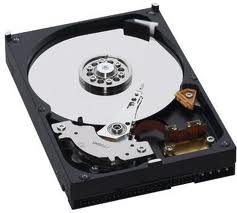
Internal View of a Hard Disk Drive

The most common and critical failure on any laptop, desktop or server computer involves hard disk drive failure. Since the programs and data on a computer require the hard drive to operate correctly, any problems with the hard disk drive must be dealt with through repair or replacement.

Before troubleshooting a hard drive failure, it is necessary to understand the basic operation of a typical hard drive.

Hard drives are small 3.5″ or 2.5″ sealed units inside every computer. Inside the hard disk drive is a motor that spins the metal discs at 5400rpm or 7200rpm. Each side of the spinning disc has an electro-magnetic read-write head attached to an arm that pivots across the disc.

When information is saved to a hard drive, the read-write head uses electricity to create a small magnetic field. This magnetic field is used to magnetize areas on a hard drive, essentially setting the magnetic field of the metal on the disc in a specific orientation. This magnetic orientation is interpreted as a ‘0’ or ‘1’ based on which way the magnetic field is pointing.

When the time comes to read the data back, the read-write head checks the magnetic orientation of the spot on the hard drive to read back the data. For the data to be read back correctly, everything has to work perfectly. This means that the areas that were magnetized when written, must stay magnetized without changing.

The fundamental problem with the design of all hard drives is that the regions that are magnetized are metal crystals. At the microsopic level, the metal crystal area on a hard drive is not a symmetric shape that magnetizes perfectly or consistently Instead, the metal crystal structure is irregular in shape, so not all areas magnetize with the same strength or consistency. This results in variation in the strength of the magnetization of the area on the hard drive.

Since the hard drive relies on magnetism to work, a lot of things can go wrong that create errors:

  • areas on the disc that fail to magnetize properly while being written become write failures.
  • areas on the disc that fail to read back clearly require multiple attempts, creating delays.
  • areas on the disc that fail completely to read are read failures and result in lost data.

If the read-write head becomes contaminated with microscopic bits of metal or dust, it may fail to read any part of the hard drive, resulting in drive failure. While the hard drive has a particulate filter inside to trap contaminants, the magnetic nature of the read-write head can attract very small metal particles that are dislodged from the disc. This metal dust will interfere with the read/write head and may also damage the disc platters.

The actual metal coating on the discs may be only 300 atoms thick. This is achieved using thin-film ion sputtering, where a powerful electron beam is used to spray chrome metal atoms onto an aluminum disc. The result is a uniformly thin and flat layer of metal that allows the read-write head to float on a cushion of air so thin that light is not visible between the gap. However, the close proximity of the read-write head, along with the thin layer of metal and powerful magnetic fields may sometimes rip layers of metal off the disc, contaminating the read-write head and damaging the disc.

Another type of failure involves motor wear. Whether a hard drive spindle motor uses ball bearings or fluid dynamic bearings, any shift in the bearing may drop the platters. As the platters shift, the read-write heads on one side of the disc are pushed closer while the other side moves away. This results in total disc failure. The solution to this problem involves placing a second spindle bearing on the opposite side of the spindle motor, which many disc drives lack.

If the pivot arm goes out of alignment from wear or failure, it will fail to read the disc. If the disc drive motor burns out, the disc will not spin. If the external circuit board malfunctions or fails, the hard drive will fail to be recognized on startup.

Since hard drives are subject to malfunction in so many different ways, they include very sophisticated and effective error correction. The error correction is additional information that is saved along with the data, and this extra information is used to check the accuracy of the data when it is saved and written.

Small errors can be resolved instantly by relying the error correction information. However, above a certain threshold, even the error correction cannot correct the data. This is when delays or failure become evident. These failures are not caused by software or viruses. Instead, they are caused either by failures of the hard disc components, or by external shock that disrupts the drive while running.

Data recovery on a failing hard drive involves either making the error correction on the hard drive perform more attempts, or using special software to bypass the error correction on the hard drive. Either approach can require long periods of time, ranging from 1-10 days for every sector on the hard drive to be read or re-read up to one thousand times to recover the data.

For example, on an 80gb hard drive, there are 160 million 512-byte sectors that must be read to recover the entire hard drive. For each bad sector, the diagnostic software may re-read that sector up to 1,000 times to reconstruct the data.

When data recovery cannot be performed using the software method described above, it may still be possible to recover the data using a national data recovery service such as OnTrack Data Systems in Minnesota. Their data recovery capabilities exceed anything else available, since they will disassemble the hard drive in a clean room and use a servo-writer to read information from the discs.

This approach bypasses all of the failed components, and is very effective at reading and recovering data from a failed hard drive. However, the cost of outside data recovery starts at $100 and can approach $1600, depending upon the size of the drive and severity of damage.

Every hard drive includes an error tracking feature known as “SMART” — short for Self Monitoring Analysis and Reporting Technology. The SMART information is a lifetime log of ten or more different categories of errors, including the power-on time for the hard drive. This information can be read at any time using a variety of software programs that are specifically designed to display the SMART history stored on the hard drive. The SMART information cannot be changed or edited.

Using the SMART information, a history of errors can be viewed and used to assess a drive for failure. Typically, hard drives are considered failing if they have relocated or re-allocated sectors, since this indicates a bad sector on the hard drive that has been removed from use. Some hard drive differentiate between relocated and uncorrectable sectors, with uncorrectable sectors posing a greater risk to data.

Posted in Computers | Tagged , , , , | Leave a comment

Making the best RAID choice for a server

When configuring the disk drives on a Windows or Linux server, it is preferable to use RAID (redundant array of inexpensive disks) instead of a single hard drive. However, all RAID configurations are not equal, and some are preferable. In short, we always recommend and use RAID-1 mirroring instead of RAID-0 disk striping (or RAID-5 striping with parity) for servers.

RAID-0 and RAID-5 require two or more disk drives and spreads the data evenly across all of the drives. An easy way to visualize RAID-0 is to imagine a document with ten pages. Page 1 is stored on the first hard drive, page 2 on the second drive and page 3 on the first drive. As the document is saved or retrieved, both hard drives work to return the data, providing faster performance than reading the entire document from a single drive. This is known as split seeking.

RAID-5 uses an extra drive for parity checking. Some configurations will dedicate the last drive to parity, while others will distribute parity information across all drives.

The intended benefit of RAID-0 is that the system provides fault tolerance when a disk drive develops an error or fails completely, and it provides improved performance over a single drive.

However, RAID-0 configurations cannot run with a degraded array and will shutdown or fail to startup until the failed drive is replaced and the data is restored. On a simple striped two drive array, a failure of either drive results in the loss of all data and requires a restore from backup. We do not recommend using RAID-0 for servers.

With RAID-5, the additional drive provides parity checking so that any of the drives can fail and be regenerated using the parity data.

Once the failed drive in an array with parity is replaced, the missing data must be rebuilt by reading the entire contents of the remaining drives and then calculating the missing data. Some RAID controllers require rebuilding the array before the operating system is started, resulting in delays of hours before the server is available.

When a RAID controller card is used, Windows Server software disables the write cache and advanced write cache option. Most RAID cards have dedicated cache RAM and some are battery backed to provide protection from unexpected shutdowns, but these integrated caches are small (32mb or 64mb) in comparison to the cache RAM available on a Windows server, which can be 1gb or more.

Windows Servers use all available unused RAM for caching. For example, on a Windows 2003 server with 4gb RAM, up to 3gb RAM can be available for read/write caching after the operating system and programs are loaded.

When using RAID-5, we recommend configuring a fourth drive as a hot spare. This allows the RAID controller to automatically fail-over to the spare drive and rebuild the array using the spare.

Another limitation of RAID-0 systems involves disk expansion. When an existing array is expanded, the next drive must be the same size or larger than the existing drives. But when a larger disk is provided, the array manager will only expand the volume in an increment equal to an existing drive. For example, on a 3-drive array using 74gb SCSI drives, only the first 74gb of the fourth drive will be added to the array; the remaining space is unused and unavailable to the array.

Over the life of a system, adding drives to an array as more space is required ends up retaining the original drives, increasing the failure rate of the system.

The better alternative to RAID-0 or RAID-5 is RAID-1, also called disk mirroring. RAID-1 uses two drives and operates the drives as duplicates, saving all information simultaneously to both drives. This feature can be configured either through a controller card or the Windows server operating system.

In the same way that RAID-0 and RAID-5 perform split seeks, Windows servers will perform split seeks when reading data from mirrored drives, resulting in improved performance over a single drive.

When RAID-1 disk mirroring is configured in the Windows Server disk utility, Windows also provides the option of 3-second write caching or 10-second advanced write caching. With write caching enabled, all available server RAM can be used to save data for up to ten seconds, allowing the server to prioritize read requests ahead of write requests, resulting in significant performance gains.

When write caching is enabled in Windows, the server should be protected with a battery backup (“UPS”) to prevent unexpected shutdowns due to power failure. As long as the UPS provides more than ten seconds of shutdown protection, the server has enough time to flush all unsaved data from the RAM cache onto the hard drive, ensuring no data is lost.

RAID-1 mirroring provides better fault tolerance and recovery than RAID-5, since a failure of either disk will not shutdown the server. When Windows server software is used for RAID-1 mirroring, a replacement drive can be re-mirrored while the server is running, eliminating the rebuilding delay required with RAID-0 and RAID-5.

In conclusion, the best choice for a server with disk fault tolerance is software RAID-1 disk mirroring.

Posted in Computers, Hardware | Tagged , , , , , | Leave a comment

Free loaner computers

Starting October 2011, we are making available free computers on loan during repairs. Simply bring in your laptop or desktop for repair, and you’ll get your choice of laptop or desktop on loan during the repair. The loaner computers will come with Ubuntu Desktop Linux installed with FireFox, so they are ready to surf the Internet. If you choose to keep the computer as a spare, pay only $100 to keep it.

Posted in Computers | Tagged , | 2 Comments

Dell Laptop Battery Recall

Dell has identified a potential issue associated with certain batteries sold with Dell Latitude™, Inspiron™, XPS™ and Dell Precision Mobile Workstation™ notebook computers. In cooperation with the U.S. Consumer Product Safety Commission and other regulatory agencies, Dell is voluntarily recalling certain Dell-branded batteries with cells manufactured by Sony and offering free replacements for these batteries. Under rare conditions, it is possible for these batteries to overheat, which could pose a risk of fire.

To determine if a laptop battery is subject to the recall and replacement, check the laptop and battery serial number using this link:

Dell Battery Program.

The following Dell laptop models included batteries that were subject to recall:

Latitude: 110L, D530
Inspiron: 1100, 1150, 5100, 5150, 5160

These battery models are also compatible with, but did not ship with, the following systems:

Latitude: D500, D505, D510, D520, D600, D610
Inspiron: 500M, 510M, 600M
Precision M20

Potentially affected batteries were sold with the following models of Dell notebook computers or separately as secondary batteries:

Latitude: D410, D500, D505, D510, D520, D600, D610, D620, D800, D810
Inspiron: 500M, 510M, 600M, 700M, 710M, 6000, 6400, 8500, 8600, 9100, 9200, 9300, 9400, E1505, E1705
Precision: M20, M60, M70, M90
XPS: XPS, XPS Gen2, XPS M170, XPS M1710

These battery models are also compatible with, but did not ship with, the following systems:
Latitude: D530, D620ATG

Posted in Computers | Tagged , , | 2 Comments

FAQ: fixing keyboard failure

When a keyboard doesn’t work after start-up, re-connecting the keyboard while the computer is running won’t make the keyboard work. Instead, the computer must be turned off and restarted to detect the keyboard. While the computer is off, the keyboard connector should be removed and re-inserted to confirm that it is fully connected.

The computer only checks the keyboard connection once during startup. If the connection is loose or a key gets pressed during the startup check, the computer will decide the keyboard isn’t connected and will ignore it until the next start-up.

The keyboard controller chip inside the computer uses a very slow method for checking the keyboard, around 18.2 times per second. This is slow in comparison to all of the other components that operate at millions of times per second.

To deal with this limitation, Windows doesn’t check the keyboard while running; instead, it only checks once during start-up. If Windows checked the keyboard every 10 seconds while running, there would be frequent and noticeable delays on a computer.

Posted in Computers, FAQ, Hardware | Tagged , | Leave a comment

Time Warner Internet Outage

We received reports of a Time Warner cable modem Internet outage affecting business users in Amherst and Tonawanda near Sheridan Drive on Thursday, June 30th from noon to 2pm. If you have Time-Warner cable modem Internet service and your Internet does not work on any computer, it is service provider related. Check your cable modem and watch for the lights to change from flashing to steady to indicate the service is available again.

Posted in Computers, Internet, Outage | Tagged , , | Leave a comment